We'll cover everything: preparing the Firestick, installing a player app, logging in with your subscription, and fixing the few issues that occasionally come up.
What you'll need before you start
Installing IPTV on a Firestick is straightforward, but it helps to have everything ready first. You'll need:
- An Amazon Fire TV Stick plugged into your TV (the 4K Max model is best for Ultra HD).
- A stable broadband connection — around 10–15 Mbps for HD, 25 Mbps+ for 4K.
- Your IPTV subscription login details (username, password and server URL) — we send these on WhatsApp.
- About ten minutes.
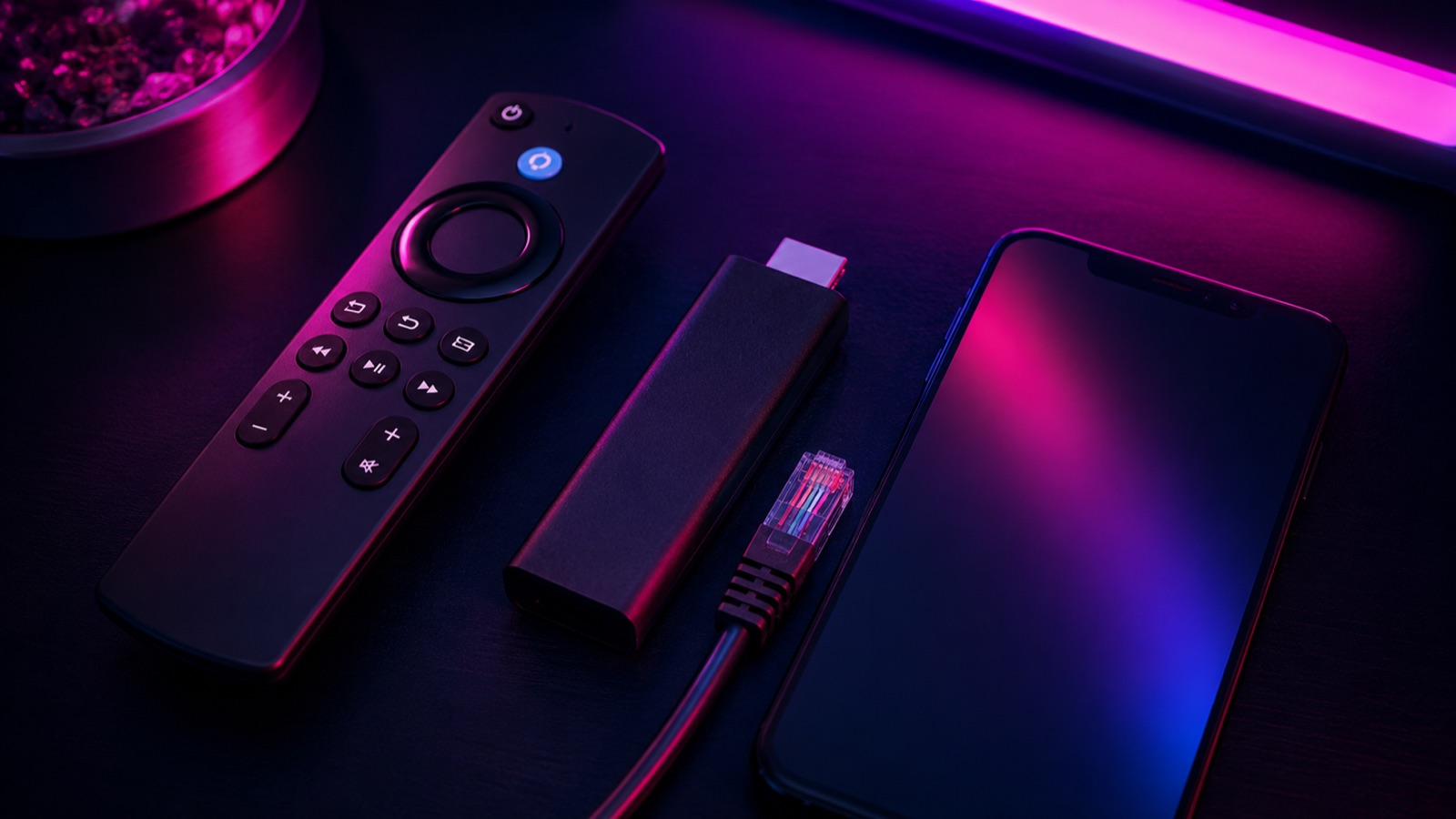
Step 1: Allow your Firestick to install apps
By default, the Firestick only installs apps from Amazon's own store. To add an IPTV player, you first allow installation from other sources — a built-in, safe option on the device:
- From the Fire TV home screen, go to Settings (the gear icon).
- Select My Fire TV (or Device & Software on some models).
- Choose Developer Options.
- Turn on 'Apps from Unknown Sources' (you'll enable it for the Downloader app in the next step).
If you don't see Developer Options, go to My Fire TV > About, highlight the device name, and click it several times until it tells you developer options are unlocked.
Step 2: Install the Downloader app
Downloader is a free, official app in the Amazon store that lets you install other apps from a web link:
- From the home screen, go to Find > Search.
- Type 'Downloader' and select it from the results.
- Click Download / Get to install it, then open it.
- When prompted, allow Downloader the permissions it requests.
Step 3: Install your IPTV player app
Now use Downloader to install the IPTV player we recommend for your setup (such as IPTV Smarters Pro). We send the exact link with your subscription:
- Open Downloader and select the URL bar.
- Type in the link we provide for your recommended player and press Go.
- Wait for the file to download, then select Install.
- Once installed, choose Open (you can delete the installer file when prompted to save space).
Step 4: Log in with your subscription
With the player installed, the final step is to enter your subscription details so the app fills with channels:
- Open the IPTV player app.
- Choose the 'Login with Xtream Codes API' option (recommended) — or playlist login if instructed.
- Enter the username, password and server URL exactly as we sent them (they're case-sensitive).
- Confirm, and give the app a minute or two to download the channel list and EPG.
- Browse Live TV, the on-demand films and series, and the 7-day guide — you're watching IPTV.
Step 5: Get the best picture
A few simple tweaks ensure smooth, sharp playback on your Firestick:
- Use the Fire TV Stick 4K Max if you want 4K — the standard HD stick is fine for Full HD.
- Place your router close to the TV, or use a strong 5GHz Wi-Fi network.
- Restart the Firestick occasionally to clear its memory.
- Close apps you're not using so memory is free for smooth streaming.
- Keep the Firestick software updated via Settings > My Fire TV > About > Check for Updates.
Troubleshooting common issues
Most problems are quick to fix and come down to login details or connection rather than the app itself:
| Problem | Likely fix |
|---|---|
| Channels won't load | Re-check the username, password and URL — they're case-sensitive |
| Stream buffers | Test broadband speed; move closer to the router or use 5GHz Wi-Fi |
| EPG / guide empty | Wait a few minutes on first launch for it to download |
| App won't install | Confirm 'Apps from Unknown Sources' is enabled for Downloader |
| Still stuck | Message us on WhatsApp — we fix most issues in one conversation |
Should you use a different device instead?
The Firestick is the easiest and most popular way to watch IPTV in the UK, but it is not the only option, and it is worth knowing the alternatives. An Android TV box offers more storage and flexibility for power users who want to install a wider range of apps, though it costs more and is less portable. A dedicated IPTV set-top box (such as a MAG device) is genuinely plug-and-play — you enter your details once and it simply works, with no app sideloading at all — but it does only IPTV. Many modern Smart TVs can run a compatible IPTV player straight from their own app store, removing the need for any extra hardware. And phones, tablets and computers all work too, which is handy for watching on the move.
For most households, though, the Fire TV Stick 4K Max remains the sweet spot: it is cheap enough to put one on every television, powerful enough for smooth 4K, portable enough to take on holiday, and flexible enough to run your other streaming apps alongside IPTV. If you already own a recent Smart TV, try its built-in player first; if not, a Firestick is the simplest and most reliable starting point.
Keeping your Firestick running smoothly
A little maintenance keeps your IPTV experience reliable over time. Restart the Firestick every week or two to clear its memory, and keep its software updated through Settings. Avoid filling the device with apps you do not use, as free memory helps playback stay smooth. If you notice buffering creep in, the cause is almost always your Wi-Fi rather than the stick — moving the router closer, switching to the 5GHz band, or connecting the Firestick by Ethernet with an adapter all make a noticeable difference. With those basics in place, a Firestick will give you years of dependable service.
Ready-to-watch in minutes
That's it — IPTV installed on your Firestick. For more on getting set up and choosing the right plan, see our dedicated IPTV on Firestick guide and our IPTV subscription pillar. If you haven't subscribed yet, the steps below get you a login in minutes.
1 / 3 / 6 / 12 / 24 / 36-month terms · order any plan on WhatsApp
Get a Firestick-ready subscription in three steps
Choose a plan
Premium for HD/FHD or 4K for Ultra HD, single month or long term.
Order on WhatsApp
We send your Firestick-ready login and the exact app link to use.
Follow this guide
Install the player, log in, and you're watching in under ten minutes.
How our IPTV subscription helps
Everything covered in this guide comes together in a single premium IPTV subscription built for UK viewers. Instead of juggling separate services, hunting for working streams or paying several monthly bills, you get one login that unlocks 23,000+ live channels, a 120,000-title on-demand library of films and series, and complete sports coverage — in HD, Full HD and true 4K where broadcast. It runs on the devices you already own, sets up in minutes, and is backed by real human support on WhatsApp.
- 23,000+ live channels from the UK, Ireland, Europe and worldwide.
- 120,000+ films and series on demand, updated weekly.
- All the major sport — football, boxing, F1, cricket, rugby and more.
- HD, Full HD and 4K on dedicated UK and EU anti-buffering servers.
- No contract — choose any term from 1 to 36 months and renew when you like.
- A free trial so you can test it on your own device before paying.
Because there is no equipment to rent and no engineer visit, the whole thing is as simple as installing an app and entering a login. And because there is no long contract, you are never locked in — you can start with a single month, test the service thoroughly, and only commit to a longer term once you are confident it is right for you. The longer you commit, the lower your effective monthly cost, with a multi-year plan working out at just a few pounds a month.
1 / 3 / 6 / 12 / 24 / 36-month terms · order any plan on WhatsApp
What devices does it work on?
You do not need any special equipment to get started. The service runs on the devices most households already own, through a simple, free player app and a login we provide. The most popular choice in the UK is the Amazon Fire TV Stick — cheap, tiny, and powerful enough for smooth 4K on the 4K Max model — but Smart TVs, Android boxes, phones, tablets, Windows PCs, Macs and dedicated set-top boxes all work just as well. Because everything is delivered over your broadband, you can also move your subscription between devices or watch on the move over Wi-Fi and mobile data.
- Amazon Fire TV Stick — the easiest and most popular option for most homes.
- Samsung, LG and Android Smart TVs via a compatible player app.
- Android TV boxes for a dedicated, flexible streaming hub.
- iPhone, iPad and Android phones and tablets for watching anywhere.
- Windows and Mac computers in a player or web player.
- MAG and other set-top boxes for true plug-and-play setups.
Reliable, supported and contract-free
The quality of an IPTV service comes down to two things that rarely show up on a sales page: how stable the streams are when everyone wants to watch, and how quickly you can reach a real person when you need help. A premium service provisions its dedicated UK and EU servers with headroom for prime-time evenings and major sporting events, and uses active anti-buffering to keep your picture smooth during those peaks. Support runs through WhatsApp, so help is a quick message away rather than buried in a slow ticket queue. And with no long contract, you are never locked in — you stay because the service is good, not because you signed an 18 or 24-month agreement.
Is it good value compared with traditional TV?
For most UK households, the value is the whole point. Once you add a traditional TV package, a sports add-on and a couple of streaming services together, the monthly total comfortably tops £80 — and you are still tied into contracts and renting equipment. A single premium IPTV subscription delivers far more content than that combination, for a fraction of the price, with no line rental, no box to hire and no minimum term. On a long-term plan the effective cost falls to just a few pounds a month, which is less than a single mainstream streaming service on its own. When you weigh up the breadth of channels, the size of the on-demand library and the full sports coverage against the price, it is difficult to find better value anywhere.
The flexibility matters just as much as the price. Because there is no contract, you can match your plan to your life — take a single month around a busy run of fixtures, or commit to a longer term for the biggest saving, and change your mind whenever you like. There are no automatic renewals to forget about and nothing to cancel by phone; you simply renew on WhatsApp when you are ready. It is television on your terms, at a price that finally makes sense.
Start in three simple steps
Choose your plan
Pick Premium, 4K or Multi-Screen and the term that suits you — or ask for a free trial first.
Order on WhatsApp
Tap the button to open WhatsApp with your plan pre-filled, then send the message to confirm.
Install & watch
We send your login and a setup guide for your device. Add the app, log in and start watching in minutes.